Batch Printing Software
Print multiple Word documents at once without opening each one: Explorer right-click, Word's File Open dialog, the printer queue, and a VBA macro.
How to print several Word files from the File > Open dialog
Word can print files it never opens, straight from its own Open dialog. Pick File, then Open, then Browse, select several files inside the dialog, right-click and choose Print. It is fast, and it gives you no chance to set anything first.
University IT departments and software vendors document this route. UCLA's IT knowledge base gives the steps and warns: "This sends the files straight to the printer without allowing you to adjust your printer settings."
You skip navigating to the folder in Explorer, but accept the driver's tray setting. The file-count limit is untested: UCLA names none, and we found no source establishing one. Keep selections modest. The dialog filters to document types by default, reducing the chance of selecting a stray spreadsheet.
How to print multiple files at once by dropping them on the printer queue
Drag the selected files onto the open printer queue window and Windows prints them. The 15-item rule is about context menu entries, so it has nothing to say about drag and drop. This is the shortest way around the wall when you do not want to touch the registry.
How to print every Word document in a folder with a VBA macro
Word's object model can print a file by name without opening a window for it. A Dir loop over the folder plus Application.PrintOut is the closest thing to a supported batch print inside Word itself, and it is the only built-in route that does not care how many files the folder holds.
Microsoft describes the PrintOut method as printing "all or part of the specified document". Its example loops through a folder with Dir("*.DOC") and calls Application.PrintOut FileName:=adoc for each match. This version adapts that loop:
Sub PrintFolderOfWordFiles()
Dim folderPath As StringDo While adoc <> ""
Application.PrintOut FileName:=folderPath & adoc, Background:=FalseMsgBox "Finished."
End Sub
Press Alt+F11 in Word, choose Insert then Module, paste the code, change the folder path to yours, and press F5.What each line of the macro does:
The PrintOut reference documents Background:=False alongside PrintZoomColumn and PrintZoomRow for pages per sheet, and ManualDuplexPrint for double-sided output on printers without a duplex unit. Those three let you handle these settings within the macro.
Why does the macro stop on a locked or read-only file?
Because something else is holding the file. Word cannot get the access it needs on a document already open elsewhere, and a file or template flagged read-only-recommended can come back read-only even when the macro opens it cleanly. Both failures look identical from the outside: one document, no page.
The Word MVP FAQ's page on locked-file errors explains the hidden owner file, ~$Name.docx, that Word writes beside each open document. It produces the "file in use" message. A crash can leave it behind, keeping the document locked. Separately, a document or template saved with the read-only-recommended flag opens read-only, including when a macro opens it.
Macros using Documents.Open must close each document explicitly. If they fail before the close line runs, the window stays open. You can return an hour later to eleven Word windows from the batch. Printing by file name avoids leaving these windows behind.
What breaks when you send 100+ Word documents at once?
Nothing new breaks at volume. The same small failures simply arrive often enough to matter. One file is open on somebody else's PC, another wants a password from the bank, and the spooler reorders what is left. The built-in routes neither handle that nor mention it, so you find out at the printer.
Take a month of 140 invoices: one is open in Word on the accountant's second monitor, and two from the bank are password protected. The Explorer route prints 137 documents without reporting the other three. You have to count sheets to find what is missing. If the invoices arrive as one PDF, extract pages from PDF files first, so you print only the sheets you need.
Every Word window left by a failed file stays in memory. Saved email attachments, which you might read through an EML to PDF converter, remove the shared Print action when you include them in the selection. A wrong default tray can waste 140 sheets instead of one.
Before a large run, print three files as a sample. Check the tray, duplex setting and print order. You cannot undo a wrong printer default after all 140 documents have printed.
Which method should you use?
Three answers pick the route for you. Count the files, look at how many file types are mixed in, then check whether Microsoft Word is on the PC. Only one branch needs a macro, and only one needs anything installed at all.
| Your situation | Route | What it costs you |
|---|---|---|
| Up to 15 files, all Word, driver defaults are fine | Right-click Print in File Explorer | No settings, no report, order not guaranteed |
| More than 15 files, all Word, one-off job | Drop them on the printer queue | Same lack of settings, but no registry edit |
| More than 15 files and you want the menu back | MultipleInvokePromptMinimum above your file count | A registry edit plus a sign-out or explorer.exe restart |
| A whole folder, same job every month | VBA macro with Background:=False | You maintain the macro; it stops on locked files |
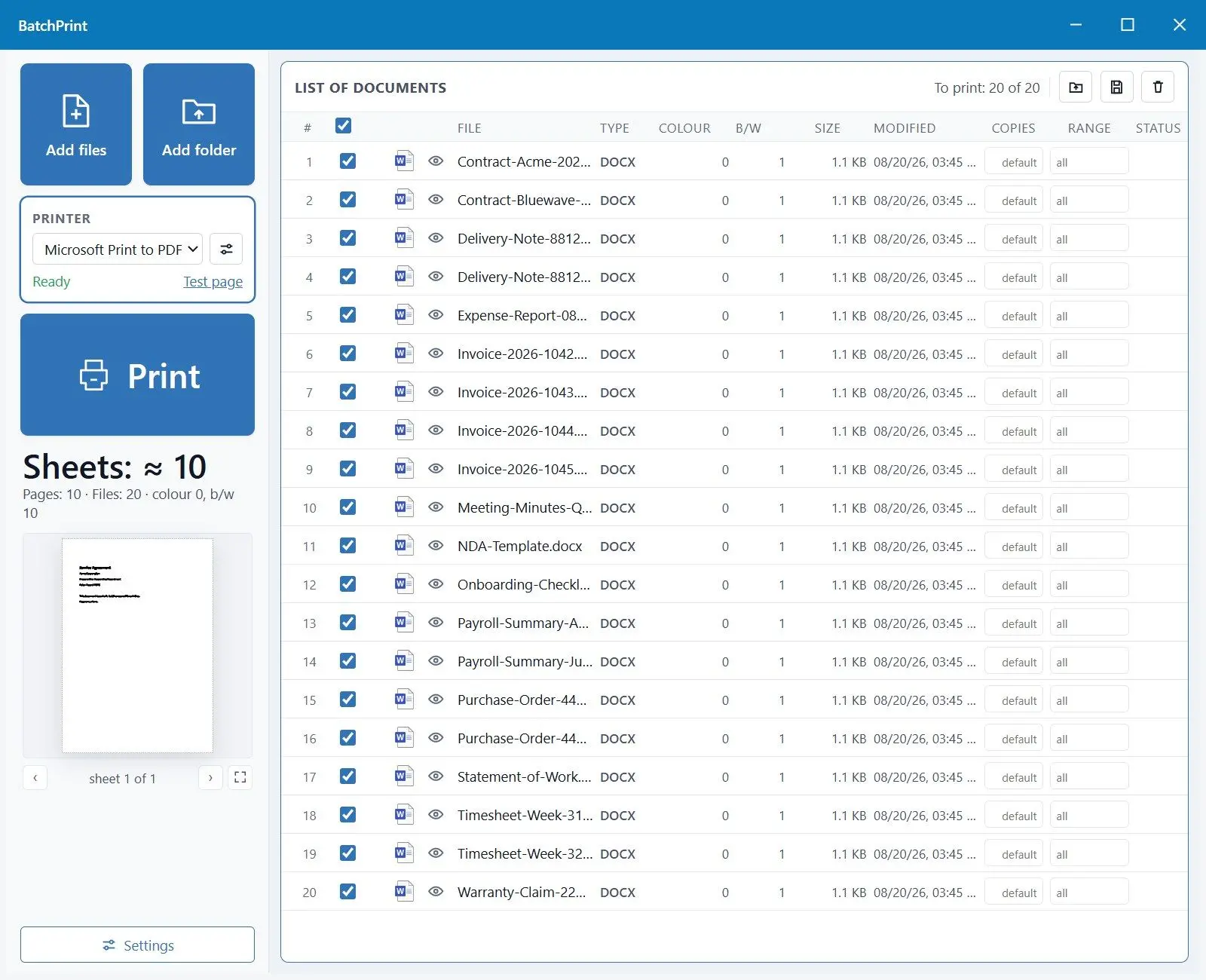
| Folder mixes Word, PDF, spreadsheets, images | A dedicated batch printer | An install, and settings you have to look at once |
| No Microsoft Office on the PC | The batch printer's own DOCX reader | Headers and footers do not print on that path |
The last two rows justify using batch print software for Windows when you print multiple Word documents at once every month. For eleven letters going to the same tray, use the right-click menu; you need no extra installation.
Batch Printing Software
Sources